Easy mode
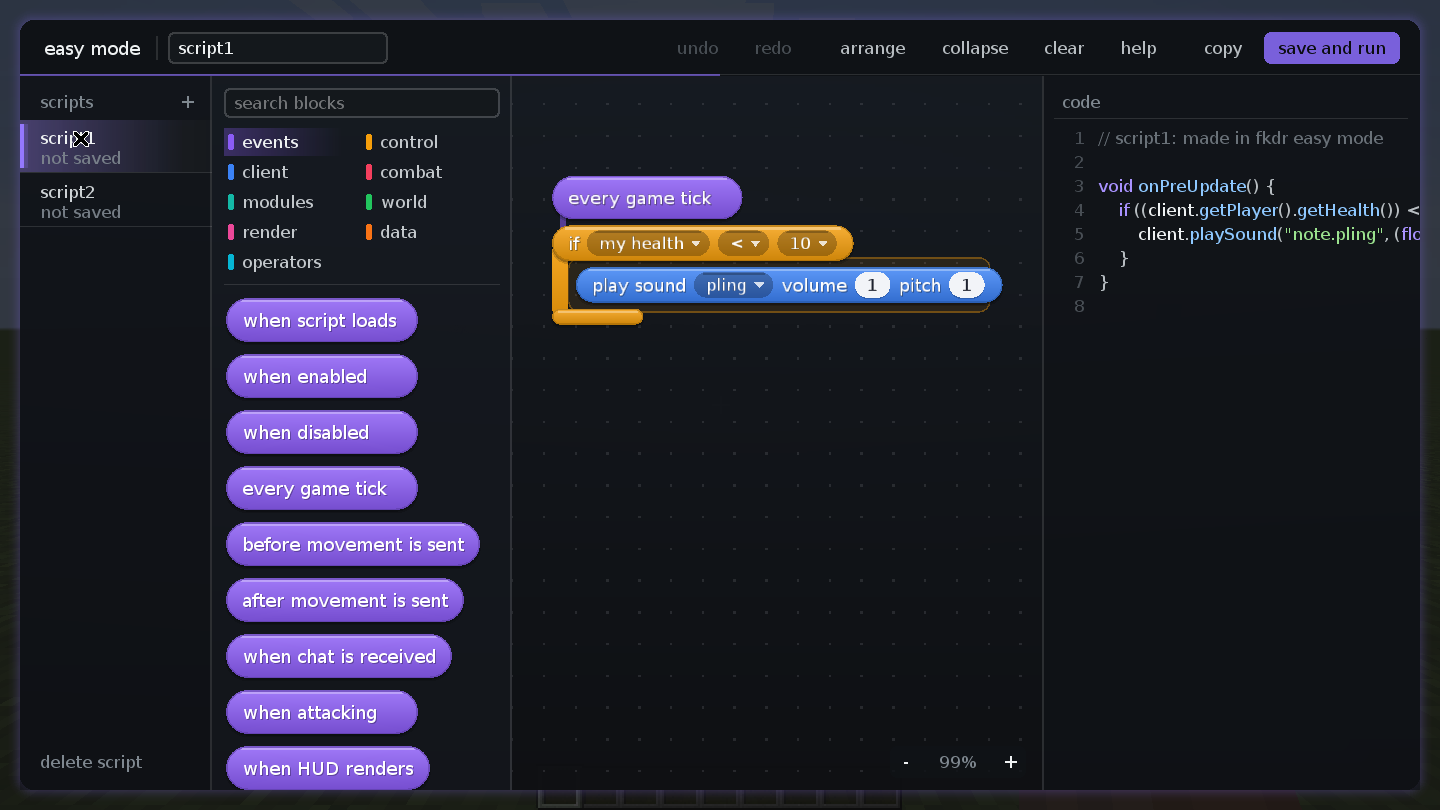
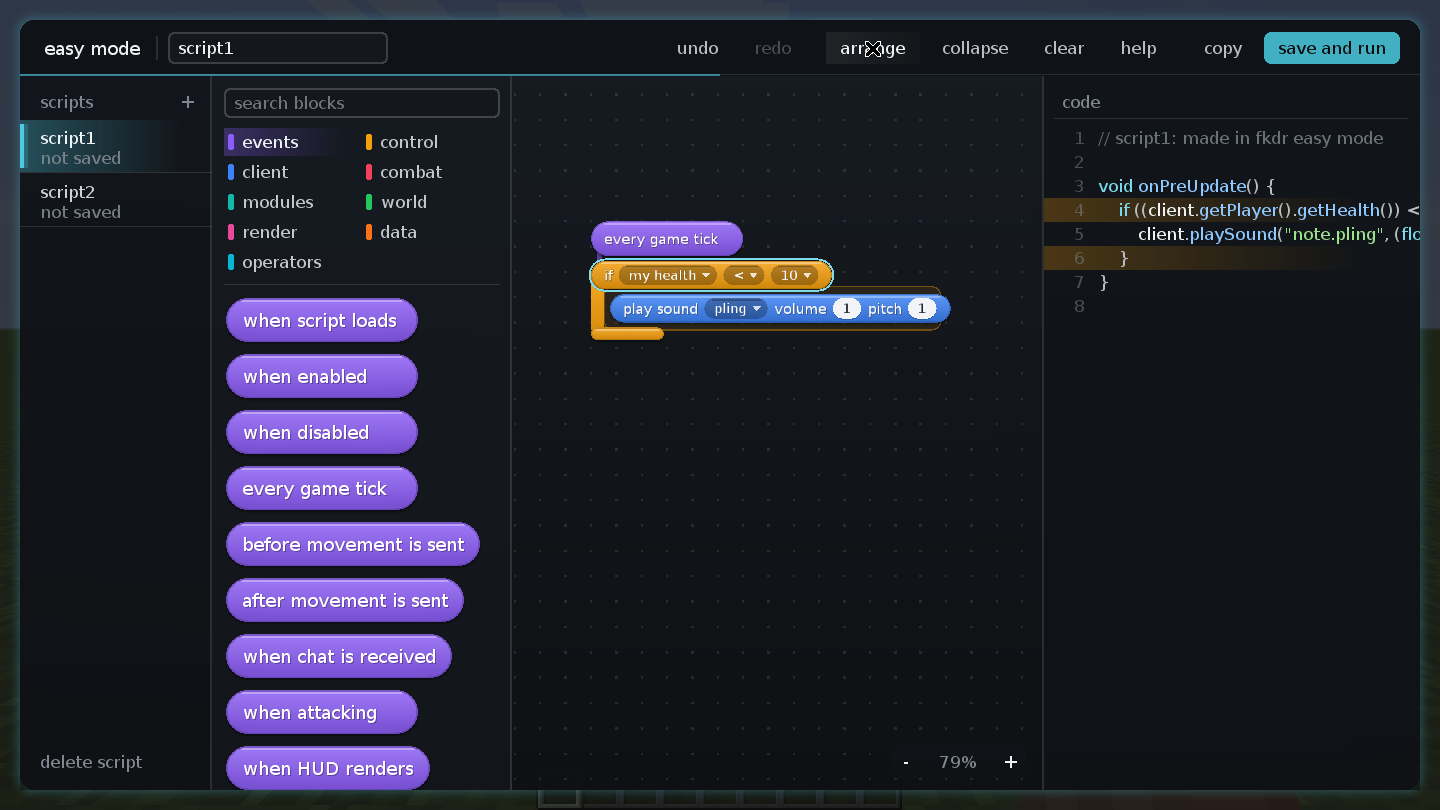
Easy mode is a block editor inside the game. You snap blocks together (every game tick, if my health < 10, play sound) and fkdr writes the script for you, shows the code as you go, and runs it when you press save and run.
The script it writes is an ordinary Java script in your scripts folder, so once it is saved it is a module like any other, and you can open the file and keep editing it by hand.
1. Open it
Either:
- open the menu, go to scripts and click the Easy Mode button, or
- type
/fkdr script easyin chat.
It opens full screen in four panes, left to right: your scripts, the palette of blocks, the canvas you build on, and the live code. Esc takes you back to where you were.
2. Start a script
Click + next to scripts to start a new one. Its name is in the box at the top (script1, script2…): click it to rename the script. The name becomes the module's name and the file name, so keep it to 14 letters, digits, _ or -.
Under each name the list says where that script is: not saved, running, or did not compile. Click a name to switch to it. delete script at the bottom removes the one that is open (click it twice to confirm). Your work is kept between sessions, whether you have saved and run it or not.
3. Find a block
The palette is sorted into categories, each with its own colour: events, control, client, combat, modules, world, render, data and operators. Click a category to list its blocks, or type in search blocks to find one by its words or its help text across all categories.
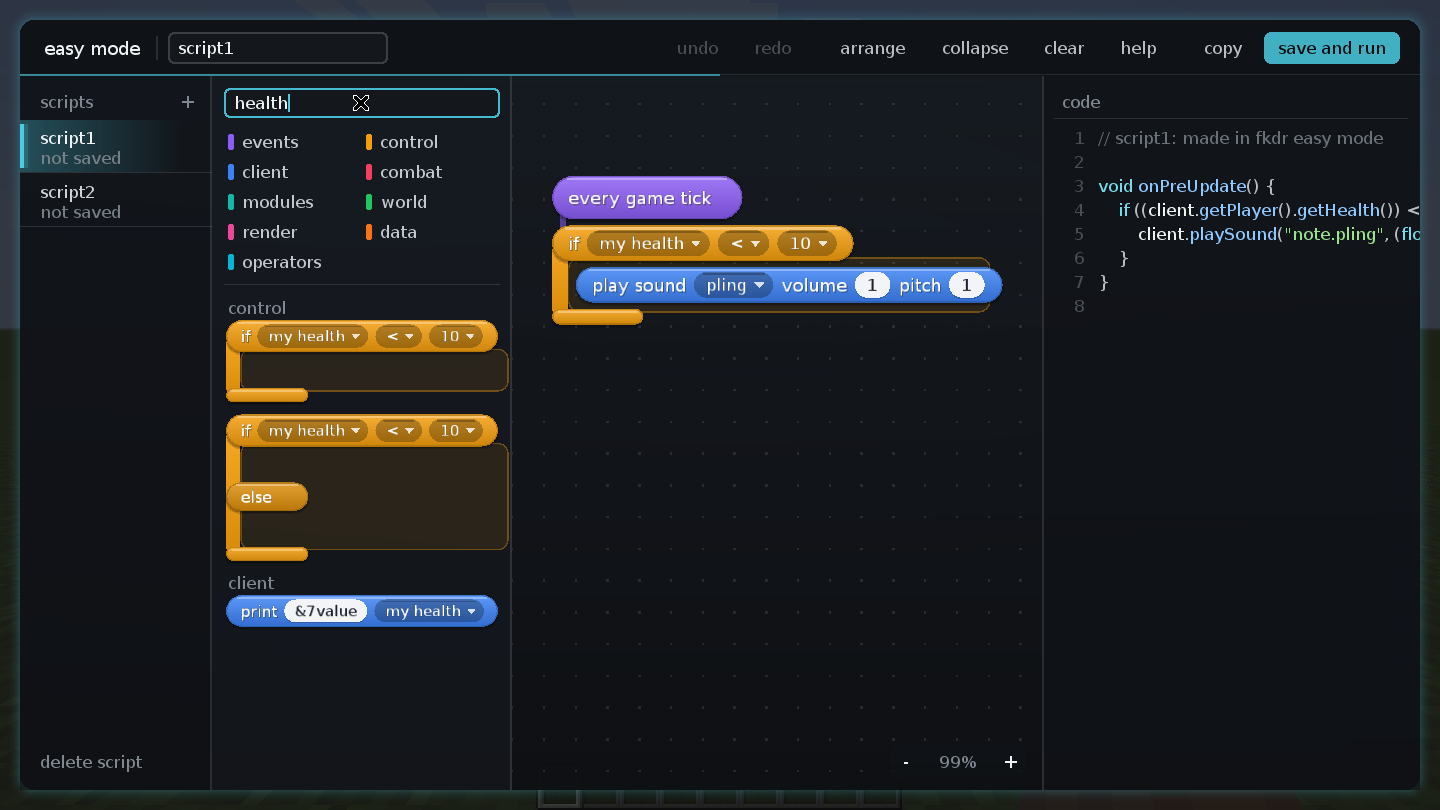
Events are the blocks with a rounded top, such as every game tick, when chat is received or when HUD renders. Everything else does something, and only runs when it hangs under an event.
4. Drag, drop and snap
Drag a block from the palette onto the canvas. Drop it just under another block and it snaps into place; drop it inside the mouth of an if or repeat block and it goes in there. A block lying on its own says not under an event, so it does not run.
- Move a stack: drag its top block; everything under it comes along.
- Take one block out: right-click it. The blocks under it close the gap.
- Remove: drag it back onto the palette (drop here to remove), or click it and press Del or Backspace.
- Move around the canvas: drag on empty space.
- Fold a stack: click its event block. Click again to open it.
5. Set the values
Every white or dark box in a block is a value. Click it to change it:
- a number or text: type it and press Enter;
- a choice (on/off, a sound,
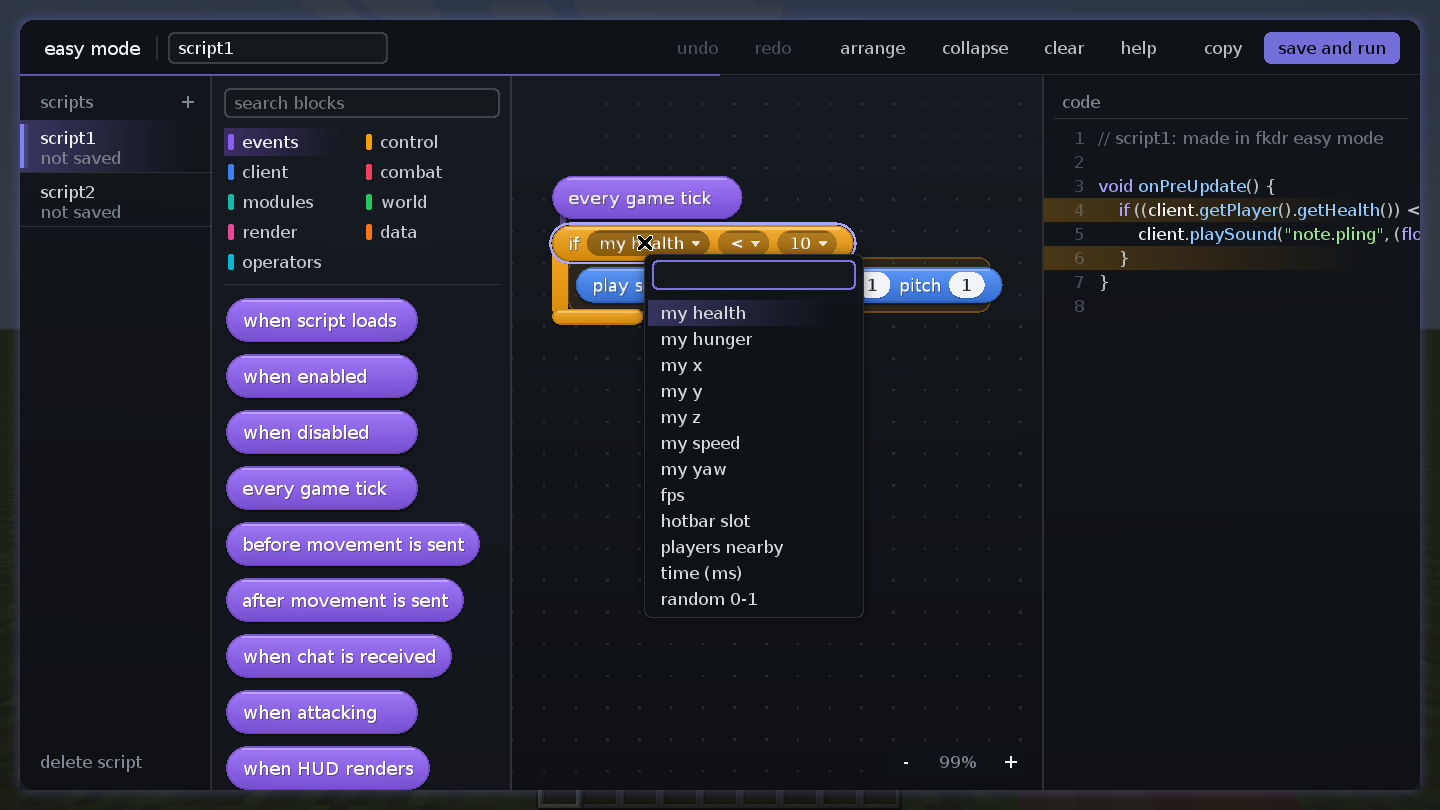
<,>,=): pick it from the list; - a reading of the game (my health, my y, my speed, fps, players nearby, time (ms), random 0-1…): pick it from the list, which has its own search box at the top. You can also type a plain number instead.
Variables. The data blocks keep a number for you: set count to …, change count by …. Once a variable exists you can pick it in any value list. save … as … and load … from … keep a value between game sessions.
Settings of your own. Put add switch, add slider and add heading (in modules) under when script loads, and your script gets those settings in its drawer in the Scripts tab, like any module. if switch … is on and set … to slider … read them back.
6. If and else
The control category has the blocks that decide and repeat:
- if … then: the blocks inside run only when the condition is true;
- if … then … else: the top part runs when it is true, the part under else when it is not;
- if on ground, if not …, if switch … is on;
- every 20 ticks, repeat 3 times, cancel the event, stop here.
A condition is three values: something to compare, how (<, >, =…), and what to compare it with, such as my health < 10.
7. Zoom, tidy up and undo
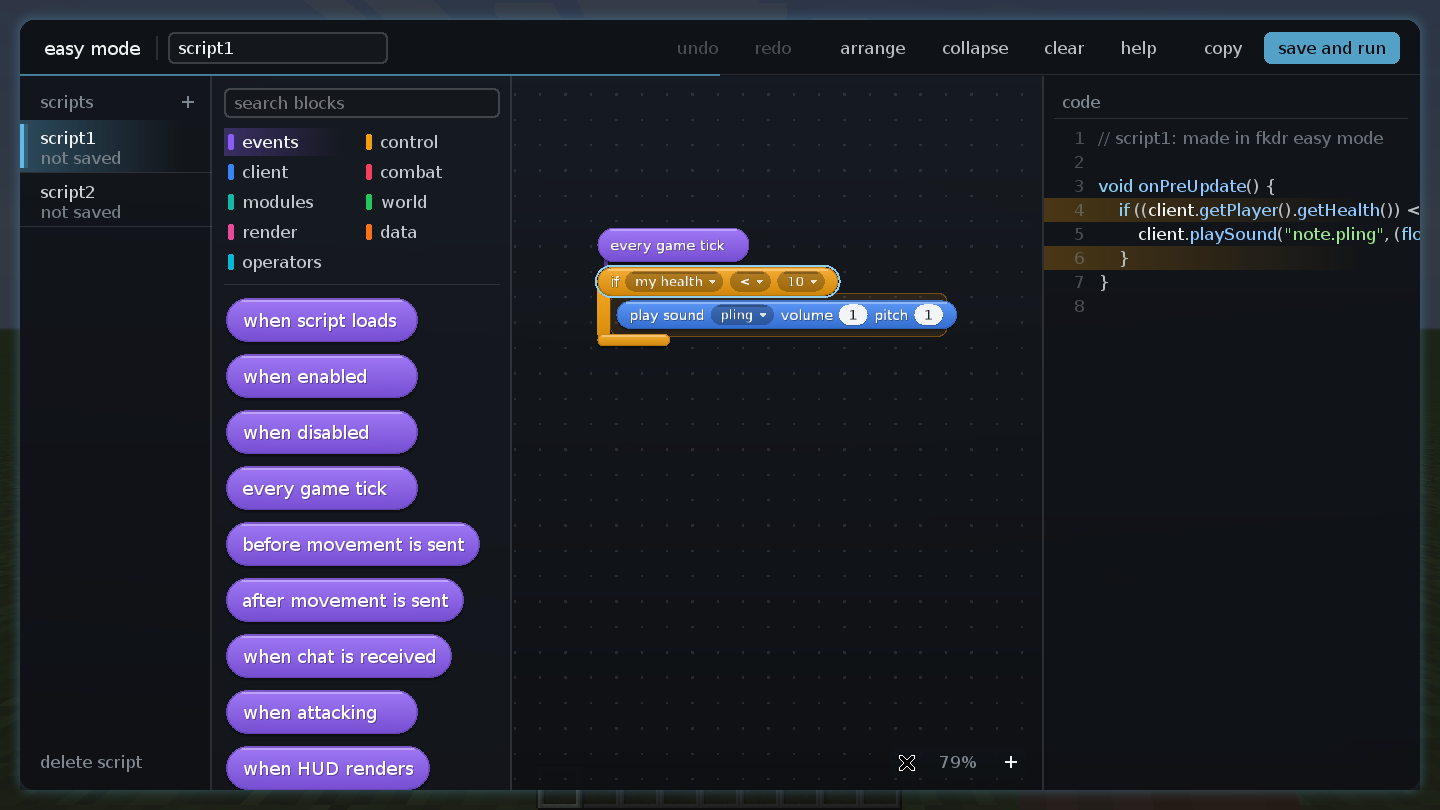
- Zoom: scroll the wheel over the canvas (it zooms around the pointer), or use - and + at the bottom, which show the zoom level.
- arrange lines every stack up neatly; collapse folds them all (and expand opens them again).
- clear empties the canvas.
- undo and redo step back and forth through your changes. Ctrl+Z undoes, Ctrl+Y or Ctrl+Shift+Z redoes.
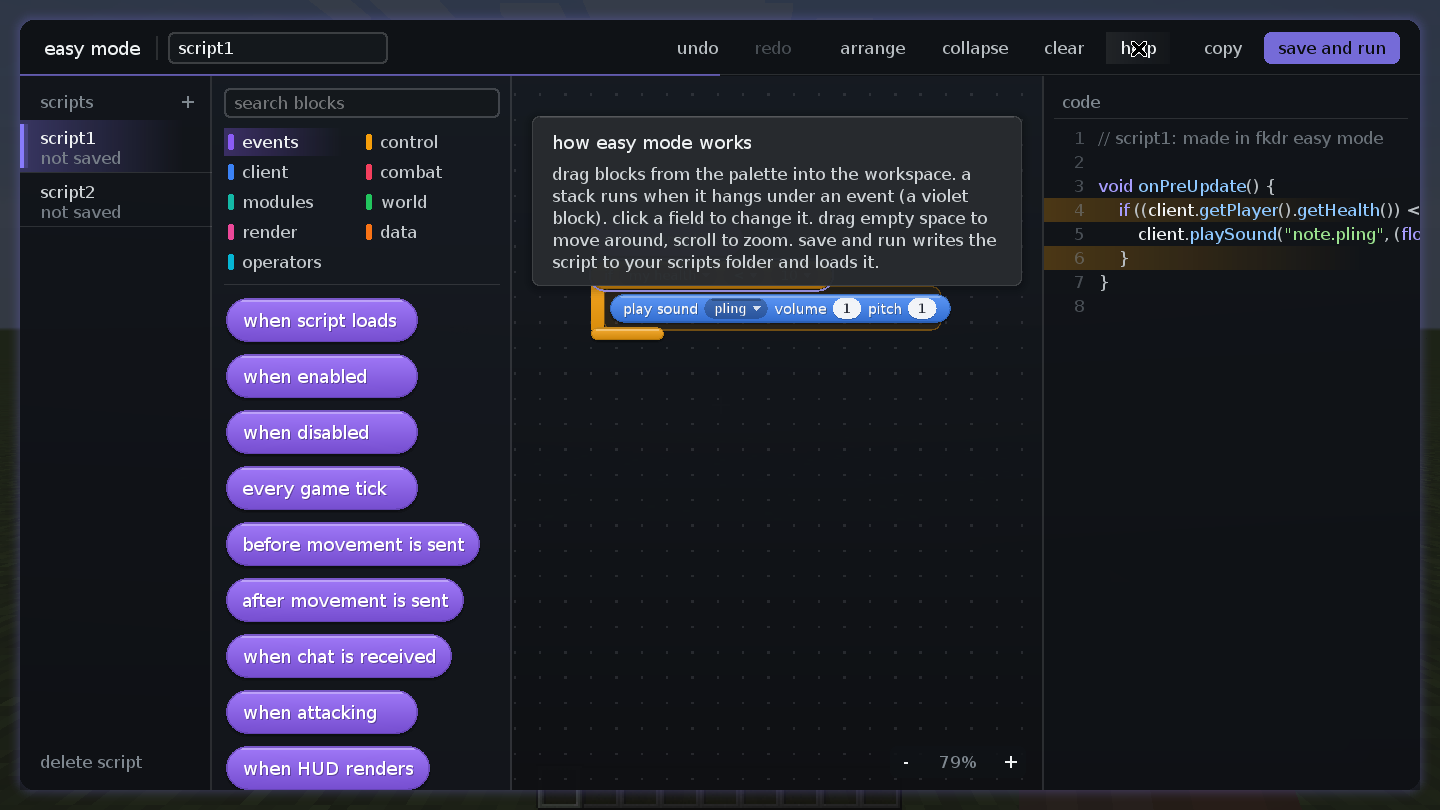
- help shows a short reminder of how it all works.
8. Watch the code
The right-hand pane is the script fkdr is writing, updated as you build. The block you have selected is highlighted in it. copy copies the whole script to your clipboard, for example to share it or to keep editing it in a text editor.
9. Save and run
Press save and run (or Ctrl+S). fkdr writes <name>.java to your scripts folder, loads it and switches it on. The script's status changes to running, and it is now a module in the Scripts tab, with its own switch and keybind.
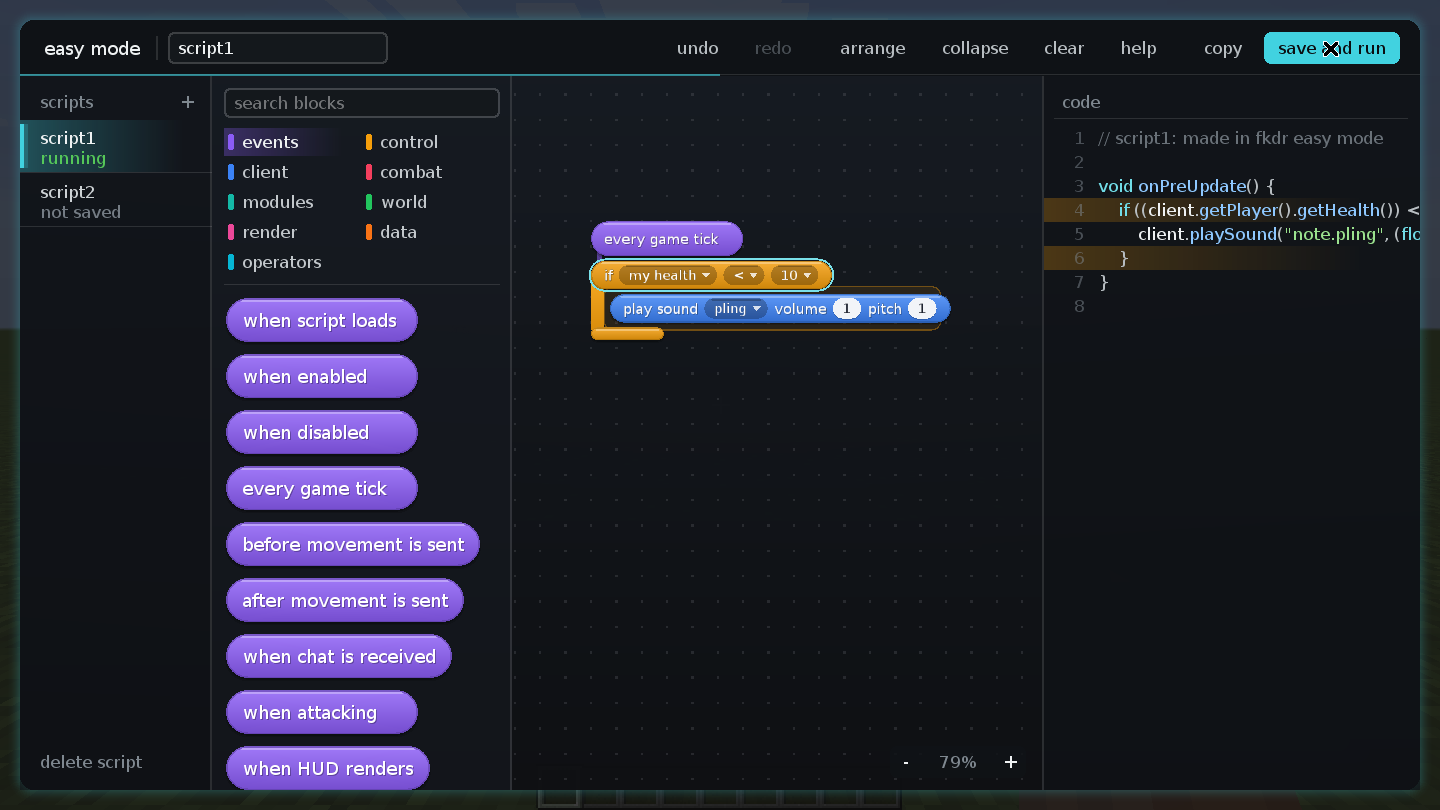
If it does not compile, chat says why (… did not compile: …) and the script is marked did not compile. Fix the blocks and press save and run again.
Editing it later
Change the blocks and press save and run again: the file is rewritten and reloaded. If you have edited the .java file by hand, easy mode does not read those edits back; saving from easy mode writes over them.